> ## Documentation Index
> Fetch the complete documentation index at: https://dripart-chore-sync-comfy-api-v2-spec-2b9c2cf.mintlify.site/llms.txt
> Use this file to discover all available pages before exploring further.
# Wan2.2 Video Generation ComfyUI Official Native Workflow Example
> Run Wan2.2 video workflows in ComfyUI: the 5B hybrid TI2V model plus 14B text-to-video, image-to-video, and first-last-frame examples, with downloads.
Wan 2.2 is a new generation multimodal generative model launched by WAN AI. This model adopts an innovative MoE (Mixture of Experts) architecture, consisting of high-noise and low-noise expert models. It can divide expert models according to denoising timesteps, thus generating higher quality video content.
Wan 2.2 has three core features: cinematic-level aesthetic control, deeply integrating professional film industry aesthetic standards, supporting multi-dimensional visual control such as lighting, color, and composition; large-scale complex motion, easily restoring various complex motions and enhancing the smoothness and controllability of motion; precise semantic compliance, excelling in complex scenes and multi-object generation, better restoring users' creative intentions.
The model supports multiple generation modes such as text-to-video and image-to-video, suitable for content creation, artistic creation, education and training, and other application scenarios.
[Wan2.2 Prompt Guide](https://alidocs.dingtalk.com/i/nodes/EpGBa2Lm8aZxe5myC99MelA2WgN7R35y)
## Model Highlights
* **Cinematic-level Aesthetic Control**: Professional camera language, supports multi-dimensional visual control such as lighting, color, and composition
* **Large-scale Complex Motion**: Smoothly restores various complex motions, enhances motion controllability and naturalness
* **Precise Semantic Compliance**: Complex scene understanding, multi-object generation, better restoring creative intentions
* **Efficient Compression Technology**: 5B version with high compression ratio VAE, memory optimization, supports mixed training
## Wan2.2 Open Source Model Versions
The Wan2.2 series models are based on the Apache 2.0 open source license and support commercial use. The Apache 2.0 license allows you to freely use, modify, and distribute these models, including for commercial purposes, as long as you retain the original copyright notice and license text.
| Model Type | Model Name | Parameters | Main Function | Model Repository |
| -------------- | --------------- | ---------- | ---------------------------------------------------------------------------------------------------------------------------- | ------------------------------------------------------------------- |
| Hybrid Model | Wan2.2-TI2V-5B | 5B | Hybrid version supporting both text-to-video and image-to-video, a single model meets two core task requirements | 🤗 [Wan2.2-TI2V-5B](https://huggingface.co/Wan-AI/Wan2.2-TI2V-5B) |
| Image-to-Video | Wan2.2-I2V-A14B | 14B | Converts static images into dynamic videos, maintaining content consistency and smooth dynamic process | 🤗 [Wan2.2-I2V-A14B](https://huggingface.co/Wan-AI/Wan2.2-I2V-A14B) |
| Text-to-Video | Wan2.2-T2V-A14B | 14B | Generates high-quality videos from text descriptions, with cinematic-level aesthetic control and precise semantic compliance | 🤗 [Wan2.2-T2V-A14B](https://huggingface.co/Wan-AI/Wan2.2-T2V-A14B) |
## ComfyOrg Wan2.2 Live Streams
For ComfyUI Wan2.2 usage, we have conducted live streams, which you can view to learn how to use them.
This tutorial will use the [🤗 Comfy-Org/Wan\_2.2\_ComfyUI\_Repackaged](https://huggingface.co/Comfy-Org/Wan_2.2_ComfyUI_Repackaged) version.
Make sure your ComfyUI is updated.
* [Download ComfyUI](https://www.comfy.org/download)
* [Update Guide](/installation/update_comfyui)
Workflows in this guide can be found in the [Workflow Templates](/interface/features/template).
If you can't find them in the template, your ComfyUI may be outdated.
If nodes are missing when loading a workflow, possible reasons:
1. You are not using the latest ComfyUI version (Nightly version)
2. Some nodes failed to import at startup
* [Cloud](https://cloud.comfy.org) will update after ComfyUI stable release.
So, if you find any core node missing in this document, it might be because the new core nodes have not yet been released in the latest stable version. Please wait for the next stable release.
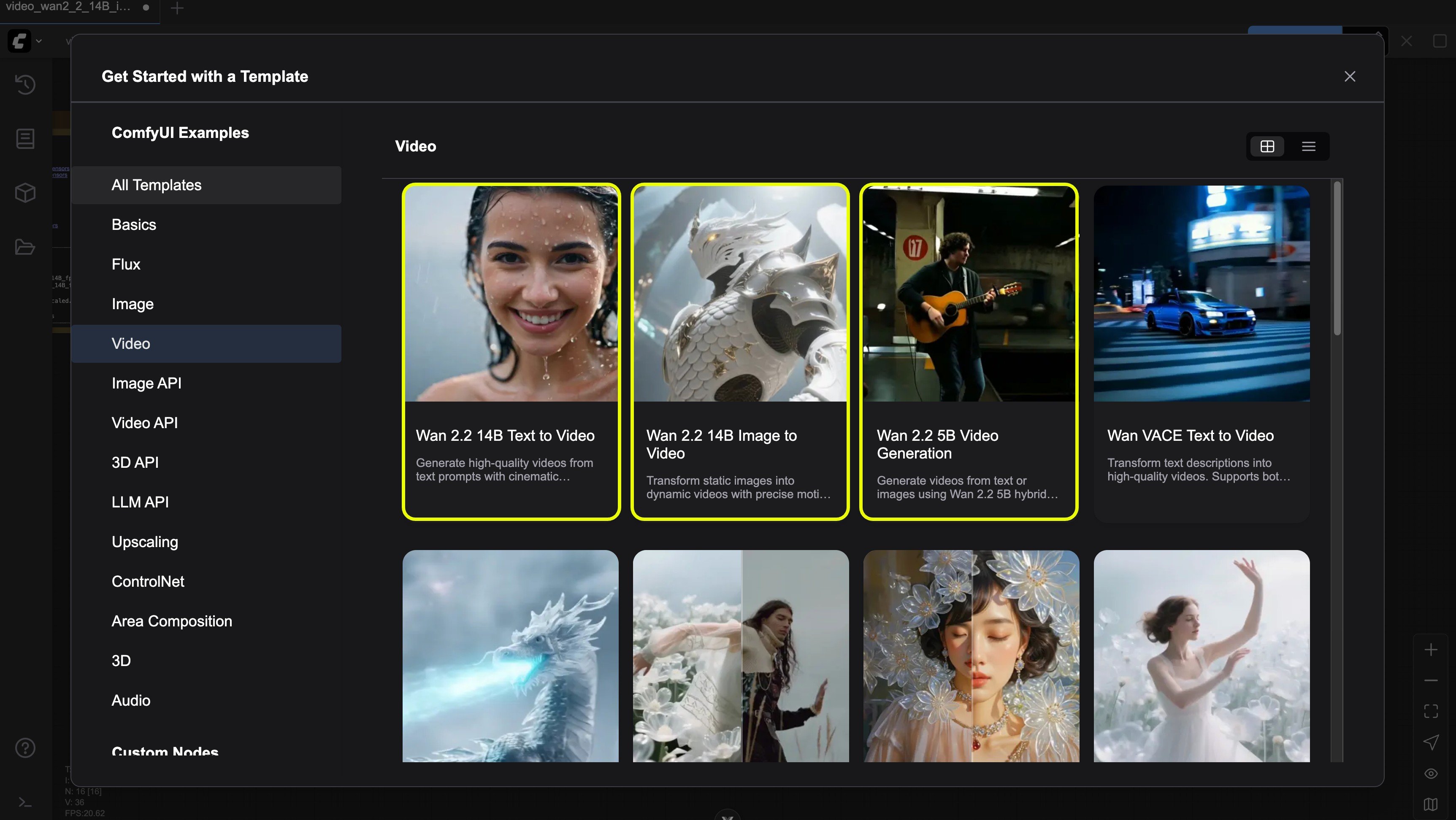
## Wan2.2 TI2V 5B Hybrid Version Workflow Example
The Wan2.2 5B version should fit well on 8GB vram with the ComfyUI native offloading.
Wan 2.2 5B Video Generation
Fast text-to-video and image-to-video generation with 5B parameters. Optimized for rapid prototyping and creative exploration.
Open in Comfy Cloud
Download JSON or search "Wan2.2 5B" in Template Library
### 2. Manually Download Models
All models mentioned can be found at [Comfy-Org/Wan\_2.2\_ComfyUI\_Repackaged](https://huggingface.co/Comfy-Org/Wan_2.2_ComfyUI_Repackaged).
**Diffusion Model**
5B hybrid diffusion model. Place in ComfyUI/models/diffusion\_models/
**VAE**
Wan2.2 VAE. Place in ComfyUI/models/vae/
**Text Encoder**
FP8 text encoder. Place in ComfyUI/models/text\_encoders/
```
ComfyUI/
├───📂 models/
│ ├───📂 diffusion_models/
│ │ └───wan2.2_ti2v_5B_fp16.safetensors
│ ├───📂 text_encoders/
│ │ └─── umt5_xxl_fp8_e4m3fn_scaled.safetensors
│ └───📂 vae/
│ └── wan2.2_vae.safetensors
```
### 3. Follow the Steps
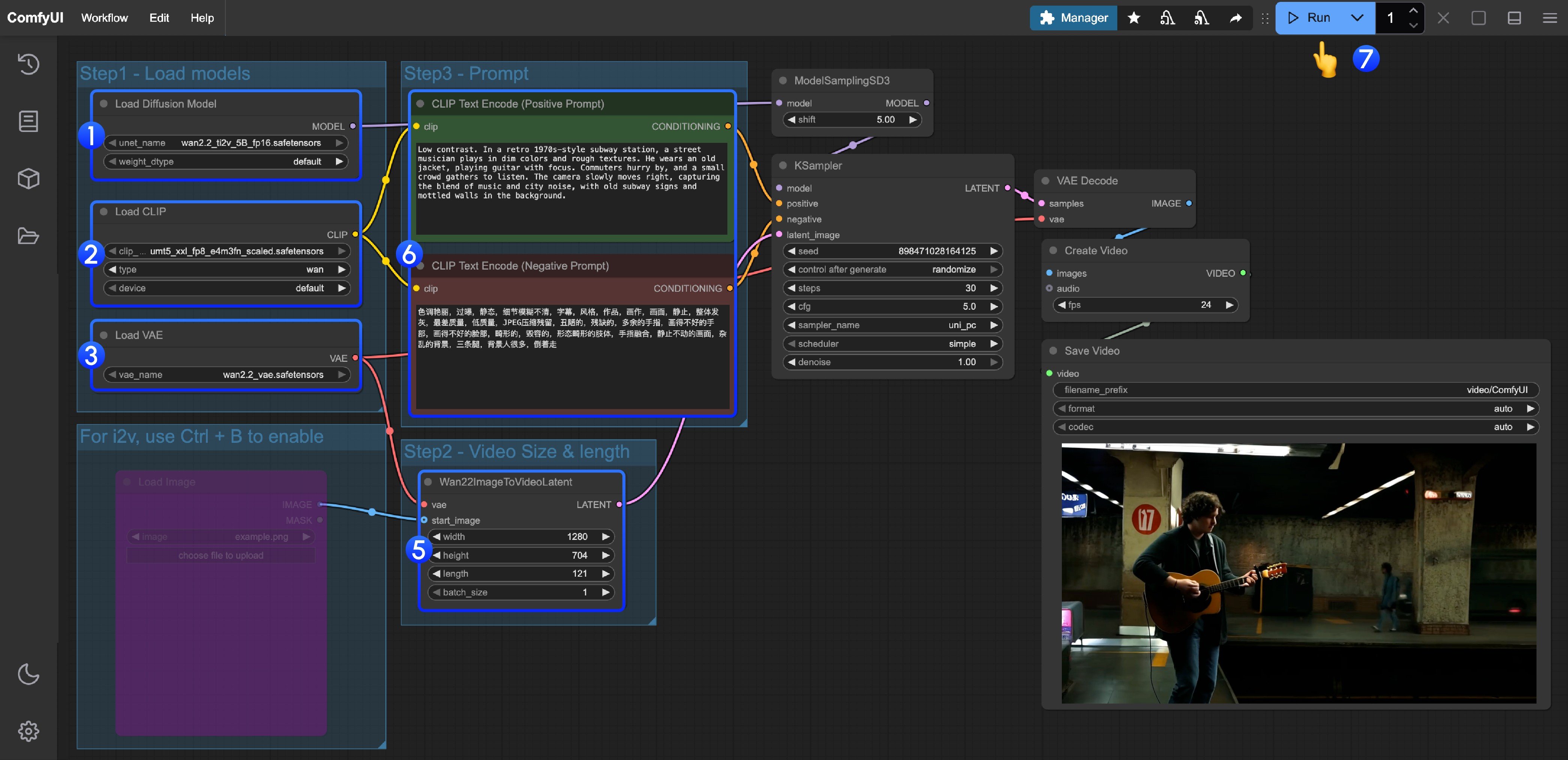
1. Ensure the `Load Diffusion Model` node loads the `wan2.2_ti2v_5B_fp16.safetensors` model.
2. Ensure the `Load CLIP` node loads the `umt5_xxl_fp8_e4m3fn_scaled.safetensors` model.
3. Ensure the `Load VAE` node loads the `wan2.2_vae.safetensors` model.
4. (Optional) If you need to perform image-to-video generation, you can use the shortcut Ctrl+B to enable the `Load image` node to upload an image.
5. (Optional) In the `Wan22ImageToVideoLatent` node, you can adjust the size settings and the total number of video frames (`length`).
6. (Optional) If you need to modify the prompts (positive and negative), please do so in the `CLIP Text Encoder` node at step 5.
7. Click the `Run` button, or use the shortcut `Ctrl(cmd) + Enter` to execute video generation.
## Wan2.2 14B T2V Text-to-Video Workflow Example
Wan 2.2 14B Text to Video
Generate high-quality videos from text prompts with cinematic aesthetic control and dynamic motion generation using Wan 2.2.
Open in Comfy Cloud
Download JSON or search "Wan2.2 14B T2V" in Template Library
### 2. Manually Download Models
All models mentioned can be found at [Comfy-Org/Wan\_2.2\_ComfyUI\_Repackaged](https://huggingface.co/Comfy-Org/Wan_2.2_ComfyUI_Repackaged).
**Diffusion Models**
High noise diffusion model. Place in ComfyUI/models/diffusion\_models/
Low noise diffusion model. Place in ComfyUI/models/diffusion\_models/
**VAE**
Wan2.1 VAE (compatible with Wan2.2). Place in ComfyUI/models/vae/
**Text Encoder**
FP8 text encoder. Place in ComfyUI/models/text\_encoders/
```
ComfyUI/
├───📂 models/
│ ├───📂 diffusion_models/
│ │ ├─── wan2.2_t2v_low_noise_14B_fp8_scaled.safetensors
│ │ └─── wan2.2_t2v_high_noise_14B_fp8_scaled.safetensors
│ ├───📂 text_encoders/
│ │ └─── umt5_xxl_fp8_e4m3fn_scaled.safetensors
│ └───📂 vae/
│ └── wan_2.1_vae.safetensors
```
### 3. Follow the Steps
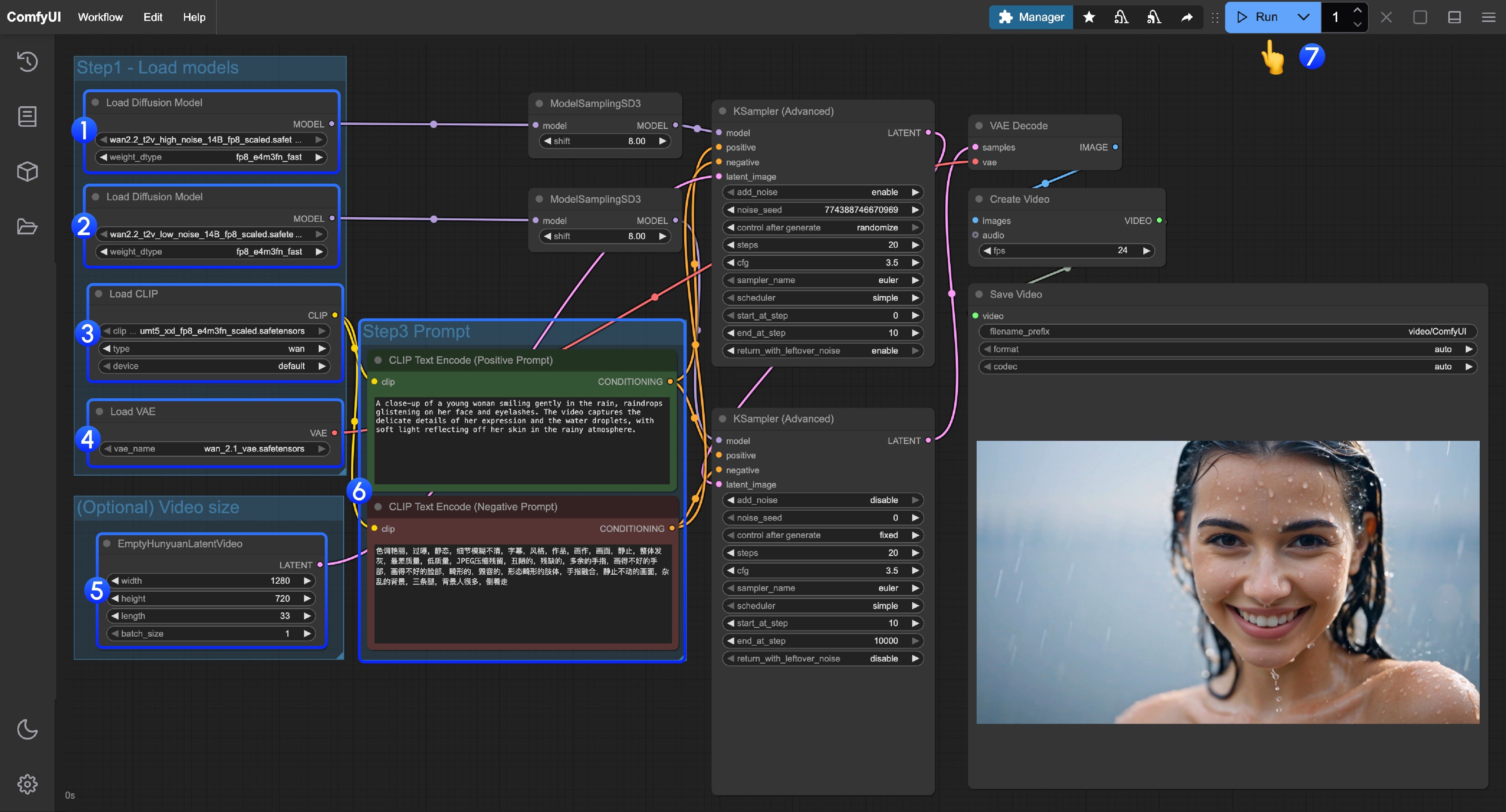
1. Ensure the first `Load Diffusion Model` node loads the `wan2.2_t2v_high_noise_14B_fp8_scaled.safetensors` model.
2. Ensure the second `Load Diffusion Model` node loads the `wan2.2_t2v_low_noise_14B_fp8_scaled.safetensors` model.
3. Ensure the `Load CLIP` node loads the `umt5_xxl_fp8_e4m3fn_scaled.safetensors` model.
4. Ensure the `Load VAE` node loads the `wan_2.1_vae.safetensors` model.
5. (Optional) In the `EmptyHunyuanLatentVideo` node, you can adjust the size settings and the total number of video frames (`length`).
6. (Optional) If you need to modify the prompts (positive and negative), please do so in the `CLIP Text Encoder` node at step 5.
7. Click the `Run` button, or use the shortcut `Ctrl(cmd) + Enter` to execute video generation.
## Wan2.2 14B I2V Image-to-Video Workflow Example
Wan 2.2 14B Image to Video
Transform static images into dynamic videos with precise motion control and style preservation using Wan 2.2.
Open in Comfy Cloud
Download JSON or search "Wan2.2 14B I2V" in Template Library
**Input materials**
Upload this file to the matching `LoadImage` node:
`LoadImage` node 97 · `video_wan2_2_14B_i2v_input_image.jpg`
**Example output**
### 2. Manually Download Models
All models mentioned can be found at [Comfy-Org/Wan\_2.2\_ComfyUI\_Repackaged](https://huggingface.co/Comfy-Org/Wan_2.2_ComfyUI_Repackaged).
**Diffusion Models**
High noise I2V diffusion model. Place in ComfyUI/models/diffusion\_models/
Low noise I2V diffusion model. Place in ComfyUI/models/diffusion\_models/
**VAE**
Wan2.1 VAE (compatible with Wan2.2). Place in ComfyUI/models/vae/
**Text Encoder**
FP8 text encoder. Place in ComfyUI/models/text\_encoders/
```
ComfyUI/
├───📂 models/
│ ├───📂 diffusion_models/
│ │ ├─── wan2.2_i2v_low_noise_14B_fp16.safetensors
│ │ └─── wan2.2_i2v_high_noise_14B_fp16.safetensors
│ ├───📂 text_encoders/
│ │ └─── umt5_xxl_fp8_e4m3fn_scaled.safetensors
│ └───📂 vae/
│ └── wan_2.1_vae.safetensors
```
### 3. Follow the Steps
1. Make sure the first `Load Diffusion Model` node loads the `wan2.2_t2v_high_noise_14B_fp8_scaled.safetensors` model.
2. Make sure the second `Load Diffusion Model` node loads the `wan2.2_t2v_low_noise_14B_fp8_scaled.safetensors` model.
3. Make sure the `Load CLIP` node loads the `umt5_xxl_fp8_e4m3fn_scaled.safetensors` model.
4. Make sure the `Load VAE` node loads the `wan_2.1_vae.safetensors` model.
5. In the `Load Image` node, upload the image to be used as the initial frame.
6. If you need to modify the prompts (positive and negative), do so in the `CLIP Text Encoder` node at step 6.
7. (Optional) In `EmptyHunyuanLatentVideo`, you can adjust the size settings and the total number of video frames (`length`).
8. Click the `Run` button, or use the shortcut `Ctrl(cmd) + Enter` to execute video generation.
## Wan2.2 14B FLF2V Workflow Example
The first and last frame workflow uses the same model locations as the I2V section.
Wan 2.2 14B First-Last Frame to Video
Generate smooth video transitions by defining start and end frames.
Open in Comfy Cloud
Download JSON or search "Wan2.2 14B FLF2V" in Template Library
**Input materials**
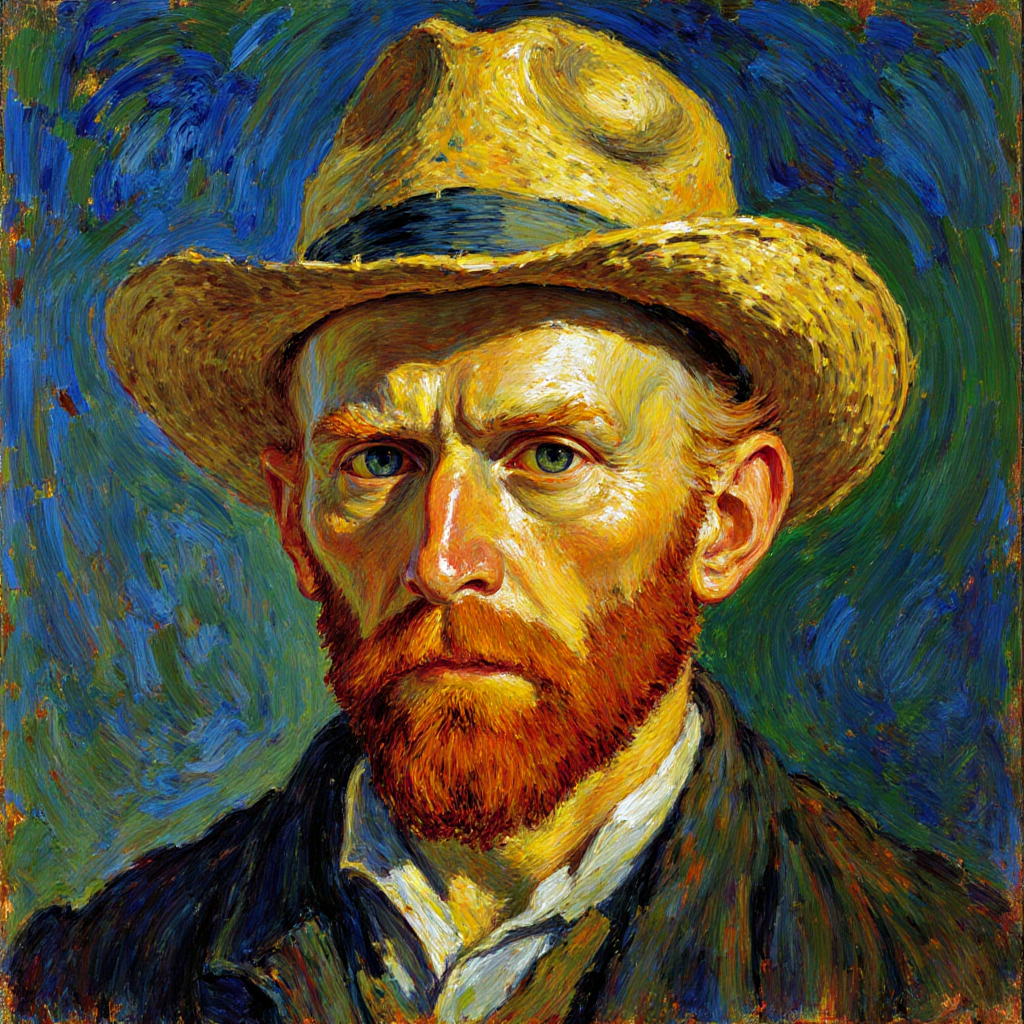
Upload these files to the matching `LoadImage` nodes:
`LoadImage` node 62 · `video_wan2_2_14B_flf2v_start_image.png`
`LoadImage` node 68 · `video_wan2_2_14B_flf2v_end_image.png`
### 2. Follow the Steps
1. Upload the image to be used as the starting frame in the first `Load Image` node.
2. Upload the image to be used as the ending frame in the second `Load Image` node.
3. Adjust the size settings in the `WanFirstLastFrameToVideo` node.
* By default, a relatively small size is set to prevent low VRAM users from consuming too many resources.
* If you have enough VRAM, you can try a resolution around 720P.
4. Write appropriate prompts according to your first and last frames.
5. Click the `Run` button, or use the shortcut `Ctrl(cmd) + Enter` to execute video generation.
## Community Resources
### GGUF Versions
* [bullerwins/Wan2.2-I2V-A14B-GGUF/](https://huggingface.co/bullerwins/Wan2.2-I2V-A14B-GGUF/)
* [bullerwins/Wan2.2-T2V-A14B-GGUF](https://huggingface.co/bullerwins/Wan2.2-T2V-A14B-GGUF)
* [QuantStack/Wan2.2 GGUFs](https://huggingface.co/collections/QuantStack/wan22-ggufs-6887ec891bdea453a35b95f3)
**Custom Node**
[City96/ComfyUI-GGUF](https://github.com/city96/ComfyUI-GGUF)
### WanVideoWrapper
[Kijai/ComfyUI-WanVideoWrapper](https://github.com/kijai/ComfyUI-WanVideoWrapper)
**Wan2.2 models**
[Kijai/WanVideo\_comfy\_fp8\_scaled](https://hf-mirror.com/Kijai/WanVideo_comfy_fp8_scaled)
**Wan2.1 models**
[Kijai/WanVideo\_comfy/Lightx2v](https://huggingface.co/Kijai/WanVideo_comfy/tree/main/Lightx2v)
**Lightx2v 4steps LoRA**
* [Wan2.2-T2V-A14B-4steps-lora-rank64-V1](https://huggingface.co/lightx2v/Wan2.2-Lightning/tree/main/Wan2.2-T2V-A14B-4steps-lora-rank64-V1)

 ## Wan2.2 TI2V 5B Hybrid Version Workflow Example
 1. Ensure the `Load Diffusion Model` node loads the `wan2.2_ti2v_5B_fp16.safetensors` model.
2. Ensure the `Load CLIP` node loads the `umt5_xxl_fp8_e4m3fn_scaled.safetensors` model.
3. Ensure the `Load VAE` node loads the `wan2.2_vae.safetensors` model.
4. (Optional) If you need to perform image-to-video generation, you can use the shortcut Ctrl+B to enable the `Load image` node to upload an image.
5. (Optional) In the `Wan22ImageToVideoLatent` node, you can adjust the size settings and the total number of video frames (`length`).
6. (Optional) If you need to modify the prompts (positive and negative), please do so in the `CLIP Text Encoder` node at step 5.
7. Click the `Run` button, or use the shortcut `Ctrl(cmd) + Enter` to execute video generation.
## Wan2.2 14B T2V Text-to-Video Workflow Example
1. Ensure the `Load Diffusion Model` node loads the `wan2.2_ti2v_5B_fp16.safetensors` model.
2. Ensure the `Load CLIP` node loads the `umt5_xxl_fp8_e4m3fn_scaled.safetensors` model.
3. Ensure the `Load VAE` node loads the `wan2.2_vae.safetensors` model.
4. (Optional) If you need to perform image-to-video generation, you can use the shortcut Ctrl+B to enable the `Load image` node to upload an image.
5. (Optional) In the `Wan22ImageToVideoLatent` node, you can adjust the size settings and the total number of video frames (`length`).
6. (Optional) If you need to modify the prompts (positive and negative), please do so in the `CLIP Text Encoder` node at step 5.
7. Click the `Run` button, or use the shortcut `Ctrl(cmd) + Enter` to execute video generation.
## Wan2.2 14B T2V Text-to-Video Workflow Example

 1. Ensure the first `Load Diffusion Model` node loads the `wan2.2_t2v_high_noise_14B_fp8_scaled.safetensors` model.
2. Ensure the second `Load Diffusion Model` node loads the `wan2.2_t2v_low_noise_14B_fp8_scaled.safetensors` model.
3. Ensure the `Load CLIP` node loads the `umt5_xxl_fp8_e4m3fn_scaled.safetensors` model.
4. Ensure the `Load VAE` node loads the `wan_2.1_vae.safetensors` model.
5. (Optional) In the `EmptyHunyuanLatentVideo` node, you can adjust the size settings and the total number of video frames (`length`).
6. (Optional) If you need to modify the prompts (positive and negative), please do so in the `CLIP Text Encoder` node at step 5.
7. Click the `Run` button, or use the shortcut `Ctrl(cmd) + Enter` to execute video generation.
## Wan2.2 14B I2V Image-to-Video Workflow Example
1. Ensure the first `Load Diffusion Model` node loads the `wan2.2_t2v_high_noise_14B_fp8_scaled.safetensors` model.
2. Ensure the second `Load Diffusion Model` node loads the `wan2.2_t2v_low_noise_14B_fp8_scaled.safetensors` model.
3. Ensure the `Load CLIP` node loads the `umt5_xxl_fp8_e4m3fn_scaled.safetensors` model.
4. Ensure the `Load VAE` node loads the `wan_2.1_vae.safetensors` model.
5. (Optional) In the `EmptyHunyuanLatentVideo` node, you can adjust the size settings and the total number of video frames (`length`).
6. (Optional) If you need to modify the prompts (positive and negative), please do so in the `CLIP Text Encoder` node at step 5.
7. Click the `Run` button, or use the shortcut `Ctrl(cmd) + Enter` to execute video generation.
## Wan2.2 14B I2V Image-to-Video Workflow Example

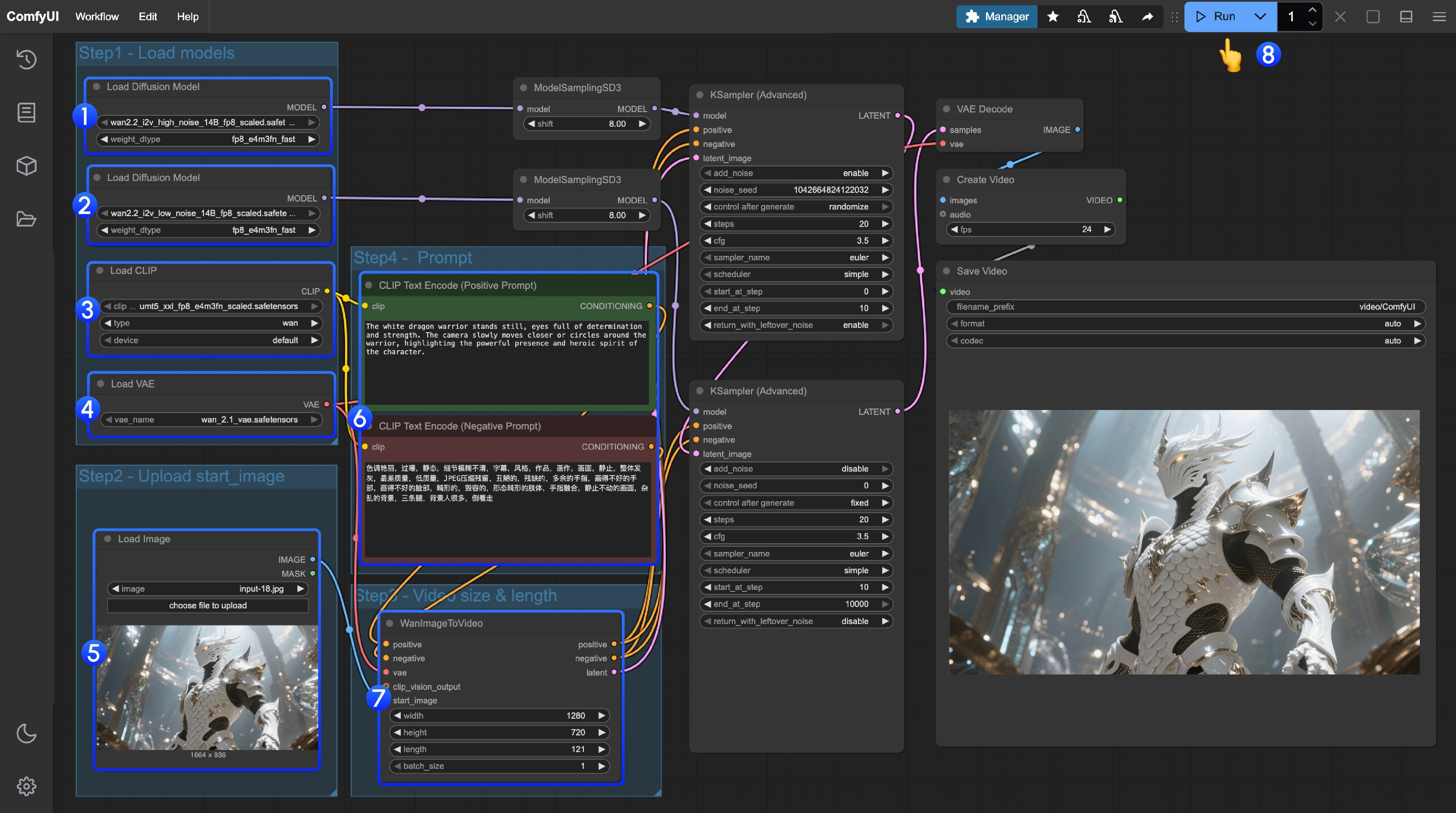 1. Make sure the first `Load Diffusion Model` node loads the `wan2.2_t2v_high_noise_14B_fp8_scaled.safetensors` model.
2. Make sure the second `Load Diffusion Model` node loads the `wan2.2_t2v_low_noise_14B_fp8_scaled.safetensors` model.
3. Make sure the `Load CLIP` node loads the `umt5_xxl_fp8_e4m3fn_scaled.safetensors` model.
4. Make sure the `Load VAE` node loads the `wan_2.1_vae.safetensors` model.
5. In the `Load Image` node, upload the image to be used as the initial frame.
6. If you need to modify the prompts (positive and negative), do so in the `CLIP Text Encoder` node at step 6.
7. (Optional) In `EmptyHunyuanLatentVideo`, you can adjust the size settings and the total number of video frames (`length`).
8. Click the `Run` button, or use the shortcut `Ctrl(cmd) + Enter` to execute video generation.
## Wan2.2 14B FLF2V Workflow Example
The first and last frame workflow uses the same model locations as the I2V section.
1. Make sure the first `Load Diffusion Model` node loads the `wan2.2_t2v_high_noise_14B_fp8_scaled.safetensors` model.
2. Make sure the second `Load Diffusion Model` node loads the `wan2.2_t2v_low_noise_14B_fp8_scaled.safetensors` model.
3. Make sure the `Load CLIP` node loads the `umt5_xxl_fp8_e4m3fn_scaled.safetensors` model.
4. Make sure the `Load VAE` node loads the `wan_2.1_vae.safetensors` model.
5. In the `Load Image` node, upload the image to be used as the initial frame.
6. If you need to modify the prompts (positive and negative), do so in the `CLIP Text Encoder` node at step 6.
7. (Optional) In `EmptyHunyuanLatentVideo`, you can adjust the size settings and the total number of video frames (`length`).
8. Click the `Run` button, or use the shortcut `Ctrl(cmd) + Enter` to execute video generation.
## Wan2.2 14B FLF2V Workflow Example
The first and last frame workflow uses the same model locations as the I2V section.


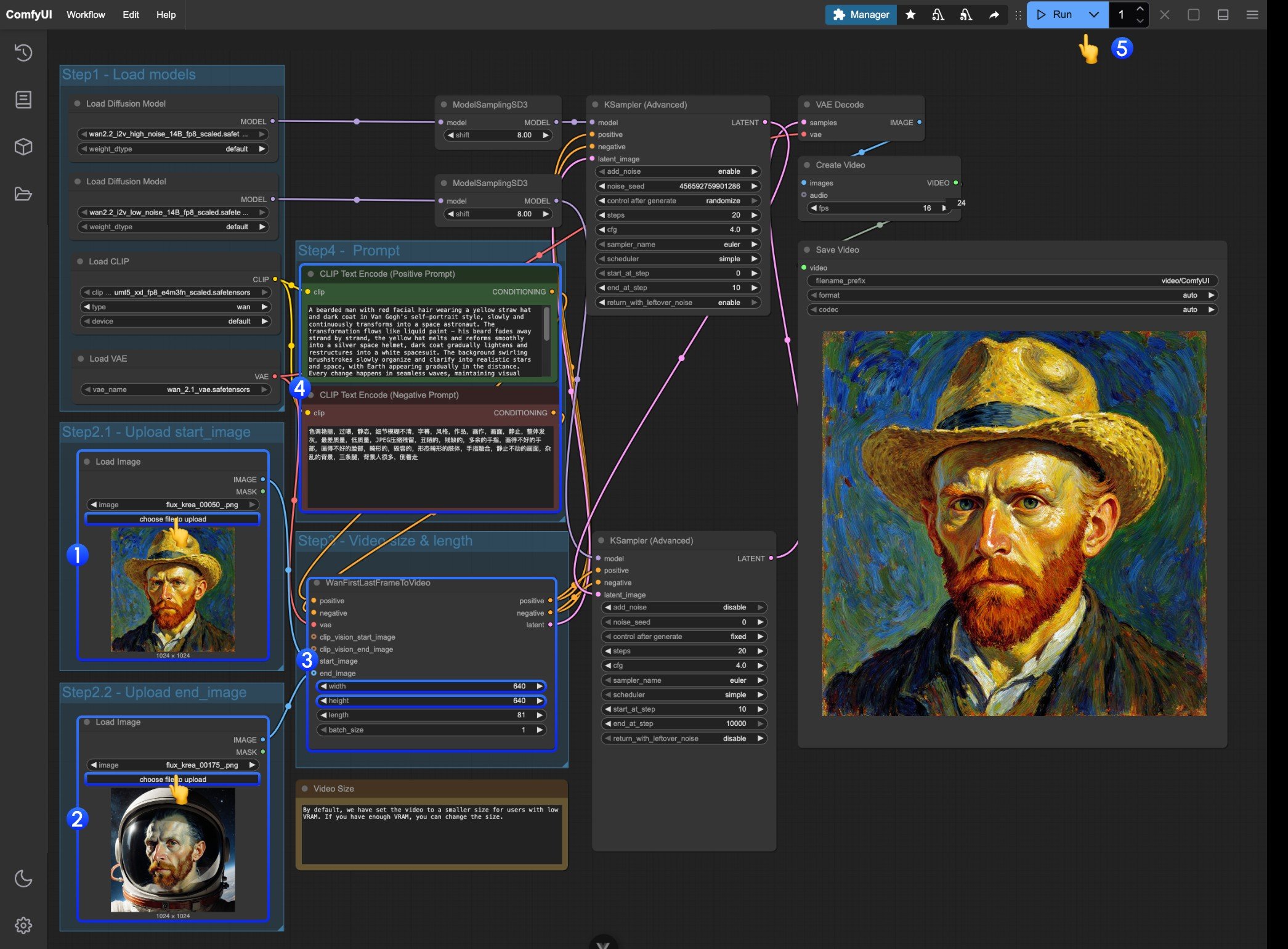 1. Upload the image to be used as the starting frame in the first `Load Image` node.
2. Upload the image to be used as the ending frame in the second `Load Image` node.
3. Adjust the size settings in the `WanFirstLastFrameToVideo` node.
* By default, a relatively small size is set to prevent low VRAM users from consuming too many resources.
* If you have enough VRAM, you can try a resolution around 720P.
4. Write appropriate prompts according to your first and last frames.
5. Click the `Run` button, or use the shortcut `Ctrl(cmd) + Enter` to execute video generation.
## Community Resources
### GGUF Versions
* [bullerwins/Wan2.2-I2V-A14B-GGUF/](https://huggingface.co/bullerwins/Wan2.2-I2V-A14B-GGUF/)
* [bullerwins/Wan2.2-T2V-A14B-GGUF](https://huggingface.co/bullerwins/Wan2.2-T2V-A14B-GGUF)
* [QuantStack/Wan2.2 GGUFs](https://huggingface.co/collections/QuantStack/wan22-ggufs-6887ec891bdea453a35b95f3)
**Custom Node**
[City96/ComfyUI-GGUF](https://github.com/city96/ComfyUI-GGUF)
### WanVideoWrapper
[Kijai/ComfyUI-WanVideoWrapper](https://github.com/kijai/ComfyUI-WanVideoWrapper)
**Wan2.2 models**
[Kijai/WanVideo\_comfy\_fp8\_scaled](https://hf-mirror.com/Kijai/WanVideo_comfy_fp8_scaled)
**Wan2.1 models**
[Kijai/WanVideo\_comfy/Lightx2v](https://huggingface.co/Kijai/WanVideo_comfy/tree/main/Lightx2v)
**Lightx2v 4steps LoRA**
* [Wan2.2-T2V-A14B-4steps-lora-rank64-V1](https://huggingface.co/lightx2v/Wan2.2-Lightning/tree/main/Wan2.2-T2V-A14B-4steps-lora-rank64-V1)
1. Upload the image to be used as the starting frame in the first `Load Image` node.
2. Upload the image to be used as the ending frame in the second `Load Image` node.
3. Adjust the size settings in the `WanFirstLastFrameToVideo` node.
* By default, a relatively small size is set to prevent low VRAM users from consuming too many resources.
* If you have enough VRAM, you can try a resolution around 720P.
4. Write appropriate prompts according to your first and last frames.
5. Click the `Run` button, or use the shortcut `Ctrl(cmd) + Enter` to execute video generation.
## Community Resources
### GGUF Versions
* [bullerwins/Wan2.2-I2V-A14B-GGUF/](https://huggingface.co/bullerwins/Wan2.2-I2V-A14B-GGUF/)
* [bullerwins/Wan2.2-T2V-A14B-GGUF](https://huggingface.co/bullerwins/Wan2.2-T2V-A14B-GGUF)
* [QuantStack/Wan2.2 GGUFs](https://huggingface.co/collections/QuantStack/wan22-ggufs-6887ec891bdea453a35b95f3)
**Custom Node**
[City96/ComfyUI-GGUF](https://github.com/city96/ComfyUI-GGUF)
### WanVideoWrapper
[Kijai/ComfyUI-WanVideoWrapper](https://github.com/kijai/ComfyUI-WanVideoWrapper)
**Wan2.2 models**
[Kijai/WanVideo\_comfy\_fp8\_scaled](https://hf-mirror.com/Kijai/WanVideo_comfy_fp8_scaled)
**Wan2.1 models**
[Kijai/WanVideo\_comfy/Lightx2v](https://huggingface.co/Kijai/WanVideo_comfy/tree/main/Lightx2v)
**Lightx2v 4steps LoRA**
* [Wan2.2-T2V-A14B-4steps-lora-rank64-V1](https://huggingface.co/lightx2v/Wan2.2-Lightning/tree/main/Wan2.2-T2V-A14B-4steps-lora-rank64-V1)